


1.) Mouse-over SERVICES and click ALL SERVICES.
2.) Click on ADD SERVICE.
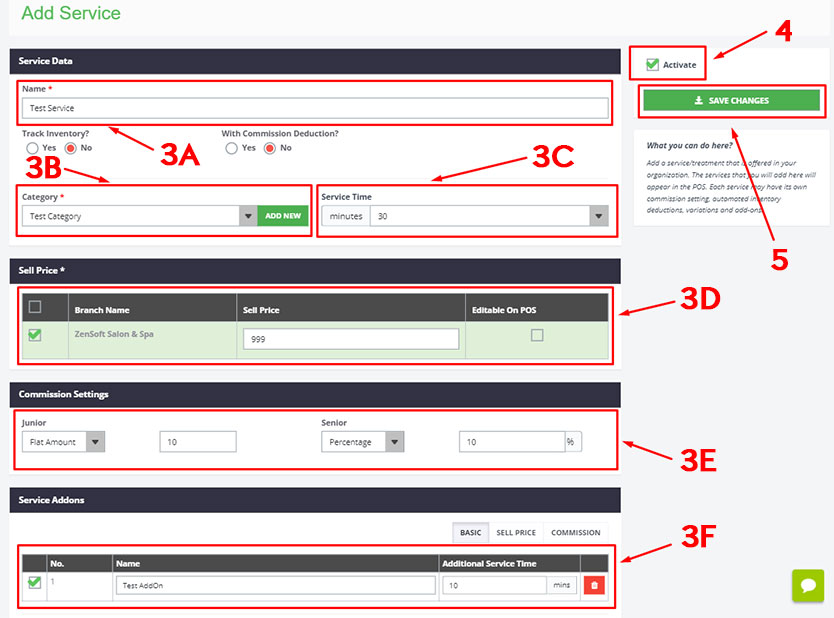
3.) Fill up the following details:
a.) NAME – This is the name of the service that will show up in POS.
b.) CATEGORY – This is required since we have reports for service categories. Click the ADD NEW button if you wish to add a new category.
c.) SERVICE TIME – Select the estimated duration of the service. This will have an effect on the start-time and end-time in the POS.
d.) SELL PRICE – Type the selling price of the service.
put a check mark on EDITABLE ON POS if the price of the service changes on certain conditions or situations. You may leave this blank if not applicable.
e.) COMMISSION SETTINGS – This is where you assign commissions for your staff.
NOT APPLICABLE – When you do not offer commissions for service.
FLAT AMOUNT – When you provide a fixed amount for commission.
PERCENTAGE – When you provide a certain percentage of the selling price as commission.
4.) Check the ACTIVATE box – This is to make sure the service will show up in POS.
5.) Click on SAVE CHANGES.