

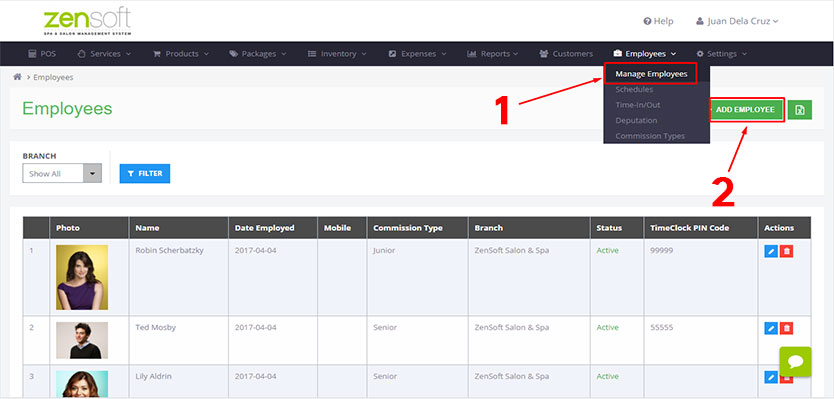
1.) Mouse-over EMPLOYEES and click MANAGE EMPLOYEES.
2.) Click on ADD EMPLOYEE.
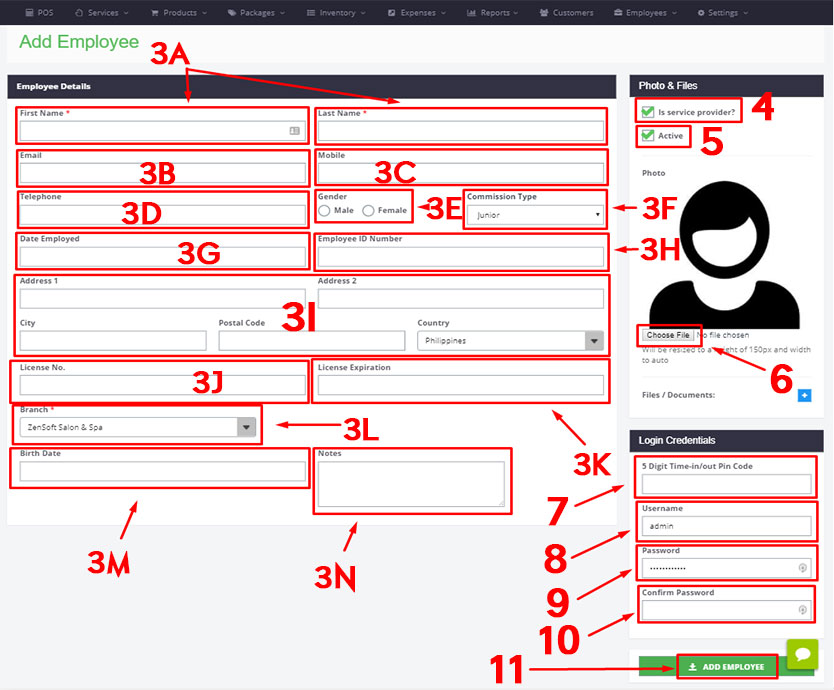
3.) Fill up the following details:
a.) FIRST NAME and LAST NAME
b.) EMAIL (optional) – You may leave this blank if not applicable.
c.) MOBILE (optional) – You may leave this blank if not applicable.
d.) TELEPHONE (optional) – You may leave this blank if not applicable.
e.) GENDER – select the gender of the employee.
f.) COMMISSION TYPE – select the appropriate commission type of the employee. This will dictate how much commission she will get.
g.) DATE EMPLOYED (optional) – You may leave this blank if not applicable.
h.) EMPLOYEE ID NUMBER (optional) – You may leave this blank if not applicable.
i.) ADDRESS (optional) – You may leave this blank if not applicable.
j.) LICENSE NUMBER (optional) – You may leave this blank if not applicable.
k.) LICENCE EXPIRATION (optional) – You may leave this blank if not applicable.
l.) BRANCH – select the branch where the staff is assigned.
m.) BIRTH DATE (optional) – You may leave this blank if not applicable.
n.) NOTES (optional) – You may leave this blank if not applicable.
4.) Check the box for “IS SERVICE PROVIDER” – This indicates whether the staff will be able to provide services in POS. If this is blank, the staff will not appear in the POS staff selection drop down.
5.) Check the box for “ACTIVE” – This will let the name of the staff show up in POS. Remove the check if the employee has resigned.
6.) Click on “CHOOSE FILE” to upload a photo of the staff (optional).
7.) Type the 5-DIGIT TIME IN/OUT PIN CODE you wish to assign to your staff. – this will let your staff clock in or clock out on our TimeClock module.
8.) Type the USERNAME you want to assign to your staff – this will let your staff login as employee in the system to view his/her commissions, schedules, attendance, etc.
9.) Type the PASSWORD you want to assign to your staff.
10.) Retype the password to confirm.
11.) Click on ADD EMPLOYEE.