

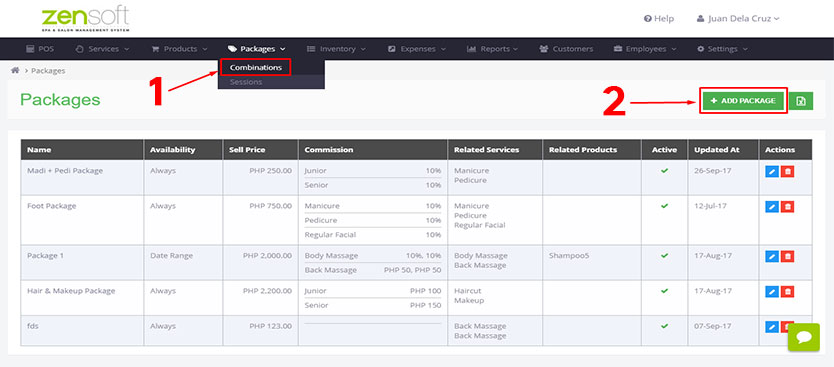
1.) Mouse-over PACKAGES and click COMBINATIONS.
2.) Click on ADD PACKAGE
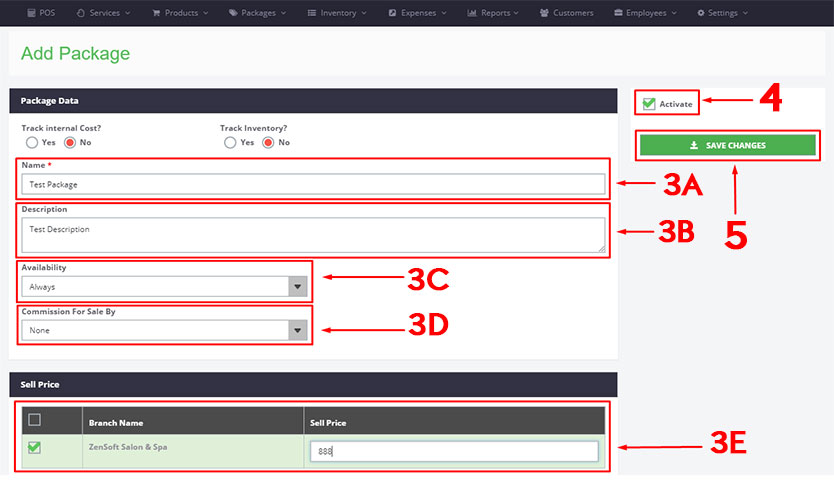
3.) Fill up the following details:
a.) NAME– This is the name of the package that will appear in the POS.
b.) DESCRIPTION (optional) – If you want to add details to the package like services included, etc. You may leave this blank if not applicable.
c.) AVAILABILITY – Select ALWAYS if the package is sold all year round. Select DATE RANGE if it has a validity date, such as for promos.
d.) COMMISSION FOR SALE BY – Select FLAT AMOUNT or PERCENTAGE if you offer commission to the staff that was able to up-sell the package to the customer. Select NONE, if you dont give any commissions to the person who sold the package.
e.) SELL PRICE – Type the selling price of the package.
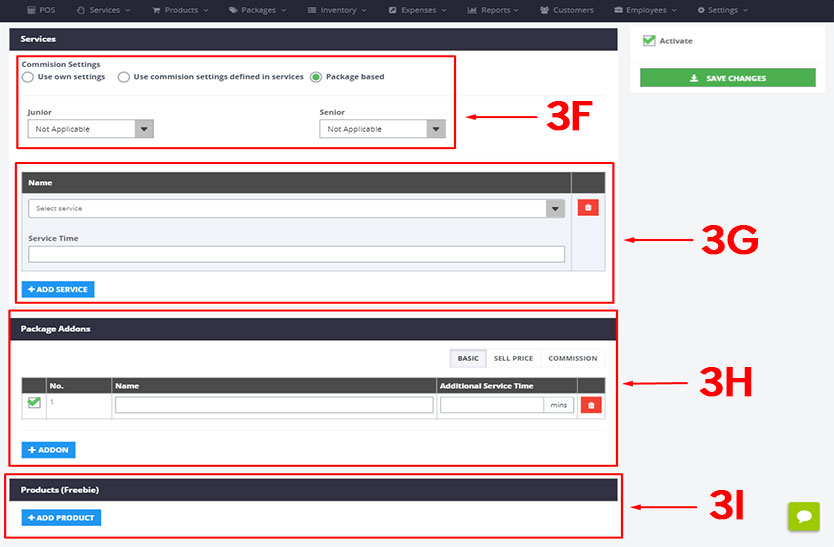
f.) COMMISSION SETTINGS – This is where you assign commission for the staff who performed the service.
NOT APPLICABLE – When you do not offer commissions for packages.
FLAT AMOUNT – When you provide a fixed amount for commission.
PERCENTAGE – When you provide a certain percentage of the service or package amount for commission.
g.) SERVICE NAME AND SERVICE TIME – This is where you select the related services and duration included in the package.
h.) PACKAGE ADD-ONS – These are optional upgrades that can be added to the package (with or without cost).
i.) PRODUCTS – These are optional items that can be given for free to the customer once they avail the package.
4.) Check the ACTIVATE box – This is to make sure the combination package will show up in POS.
5.) Click on SAVE CHANGES.