

Printing Receipts only work if you have a POS Printer installed in your system.
There are two options to print receipts.
Option 1: While taking payments from customers
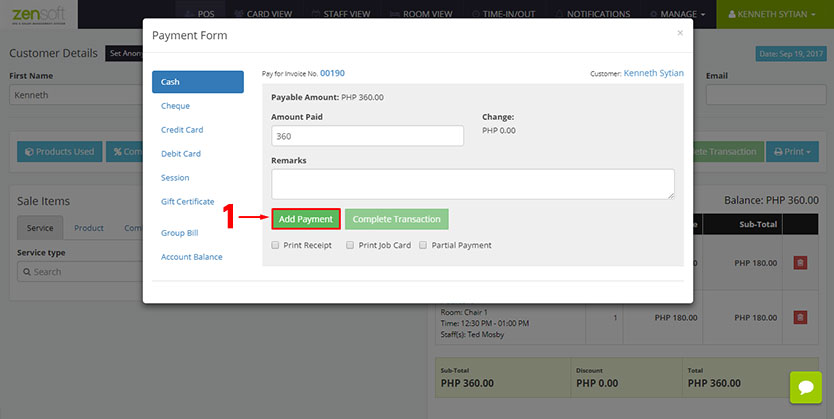 1.) In the Payment Form interface click the ADD PAYMENT button.
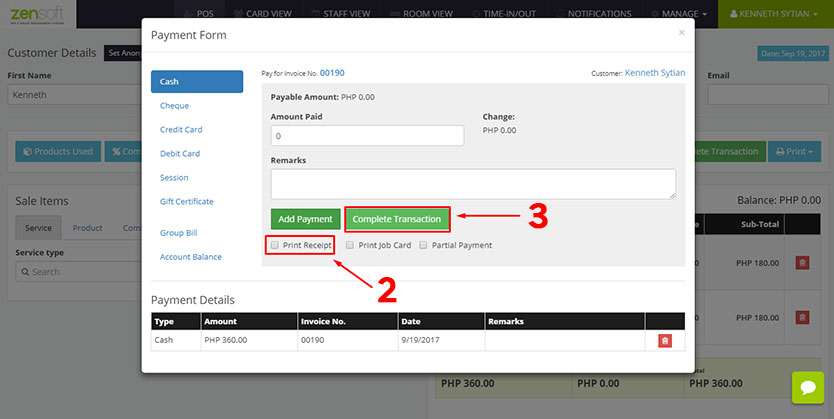
2.) Put a check mark on the PRINT RECEIPT check box. Optionally, you may also put a check mark at the PRINT JOB CARD box if you want to print them both.
3.) Click the COMPLETE TRANSACTION button.
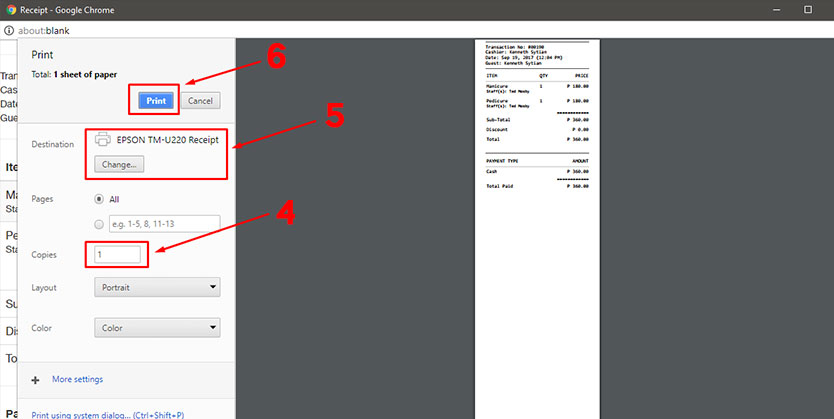
4.) In the print dialogue box, type the number of COPIES you want to print.
5.) Make sure you select the POS Printer you have installed in your system.
6.) Click the PRINT button.
Click here if you want to learn how to change the printed receipt template.
Option 2: While in the transaction details page
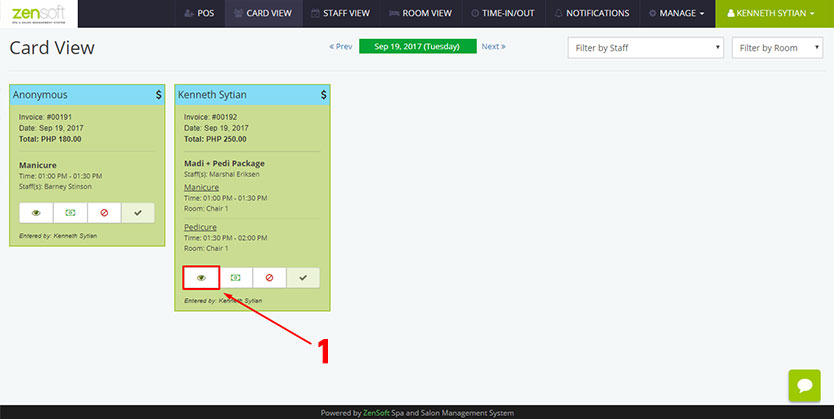
1.) While on the Card View page. Click on the DETAILS icon of the transaction you want to print.
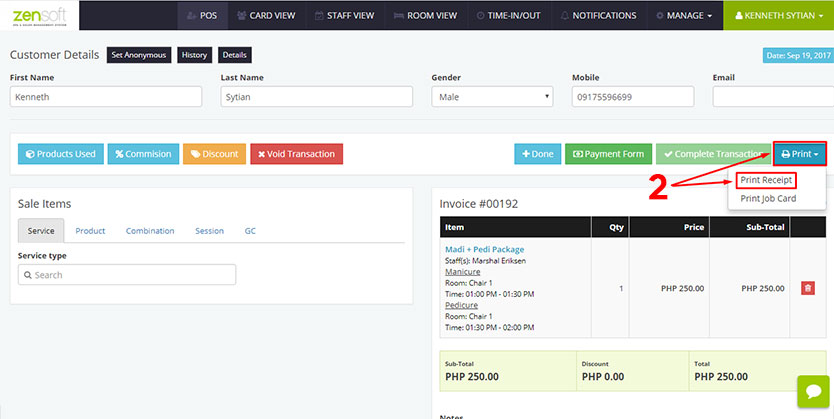
2.) Click the PRINT icon and select PRINT RECEIPT.
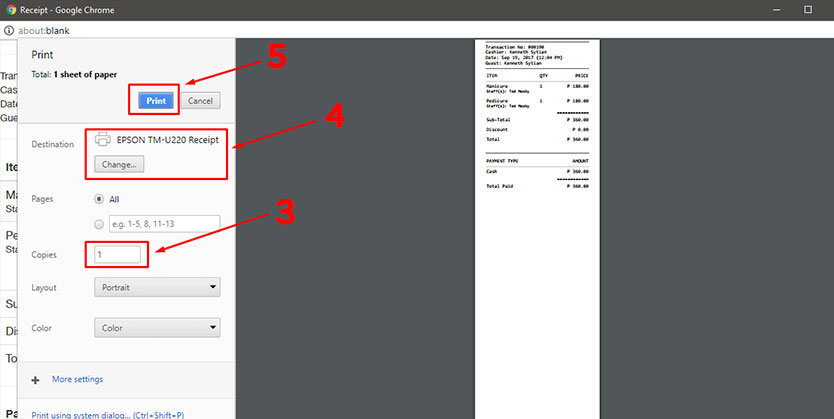
3.) In the print dialogue box, type the number of COPIES you want to print.
4.) Make sure you select the POS Printer you have installed in your system.
5.) Click the PRINT button.
Click here if you want to learn how to change the printed receipt template.